APAAR ID Download PDF: Get Student Card via DigiLocker & Without DigiLocker
Once your 12-digit APAAR ID (Automated Permanent Academic Account Registry—also widely searched by students and parents as Apar ID, Appar ID download, Apar ID card download, Upper ID, or अपार आईडी) is generated, the next essential step is to download your digital card in PDF format.
This step-by-step guide walks you through how to download your APAAR ID card PDF via DigiLocker, how to download APAAR ID without DigiLocker (via WhatsApp Helpdesk +91-9013151515, ABC Portal, or School UDISE+), how to find or know your APAAR ID number if you forgot it, and how to verify your certificate QR code.
How to Download Your APAAR ID Card PDF Through DigiLocker
Once your 12-digit APAAR ID (or Appar ID / Apar Card) has been generated by your school or college, you can download the official PDF card free of cost through DigiLocker on any computer or smartphone.
Download APAAR ID Card from DigiLocker Issued Documents
- Visit the official DigiLocker website at
www.digilocker.gov.inor open the DigiLocker mobile app on Android or iOS. - Click on “Sign In” and enter your Aadhaar-registered mobile number or 12-digit Aadhaar number.
- Enter your 6-digit DigiLocker security PIN and verify the OTP received on your mobile phone.
- In your DigiLocker dashboard, click on the “Issued Documents” tab in the left-hand menu.
- Find your APAAR ID Card (often listed under Academic Bank of Credits / ABC ID Card).
- Click on the document title to open and preview your 12-digit APAAR card with your photo and QR code.
- Click the “Download PDF” icon next to the document to save the digitally signed PDF copy to your phone or computer.
- You can print this PDF card anytime on A4 paper or a PVC smart card for school or college submission.
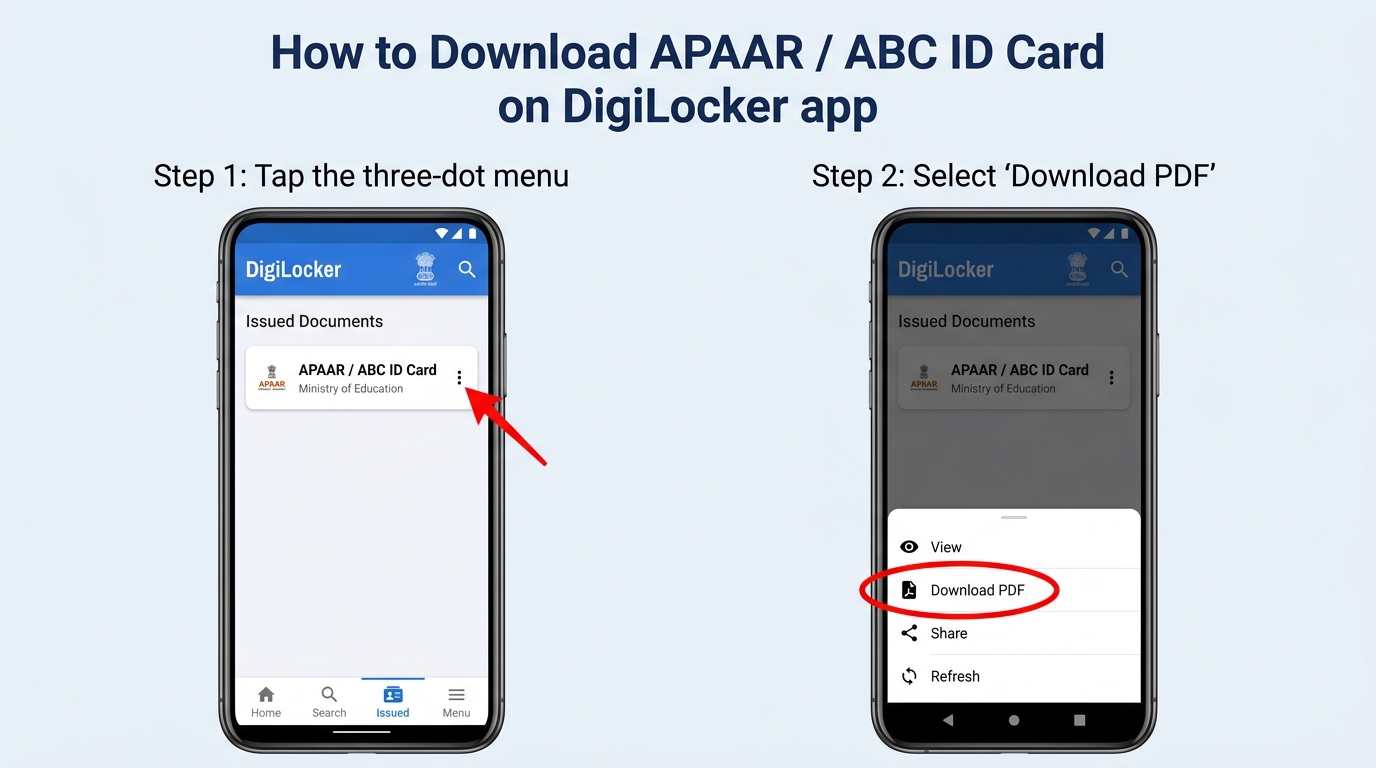
How to Find & Get APAAR ID in DigiLocker Search Documents
If you logged into DigiLocker but do not see your card under Issued Documents yet, follow these steps to fetch or create your APAAR ID in DigiLocker manually:
- Inside your DigiLocker dashboard, click on “Search Documents” in the sidebar.
- In the search bar, type “APAAR” or “Academic Bank of Credits” and select “APAAR/ABC ID Card” under the Ministry of Education.
- Your Name, Date of Birth, and Gender will auto-populate from your Aadhaar profile.
- Select your Academic Admission Year, Identity Type (Roll Number, Registration Number, Enrollment Number, or New Admission), and enter your Identity Value.
- Select your School Board / University / Institution Name from the dropdown list.
- Tick the consent checkbox and click “Get Document”. Your APAAR ID card will immediately appear inside Issued Documents for PDF download.
👉 First-time user? Read our full How to Create & Register APAAR ID Online Guide.
How to Download APAAR ID Without DigiLocker App (4 Official Ways)
Many students and parents search for APAAR ID download without DigiLocker when they do not have the DigiLocker mobile app installed or cannot access their DigiLocker account. Use these four authorized alternatives.
1. Download APAAR ID PDF on WhatsApp (+91-9013151515)
You can download your verified card directly inside WhatsApp without installing the DigiLocker app:
- Save the official Government of India MyGov Helpdesk number
+91-9013151515in your phone contacts. - Open WhatsApp and send “Hi” or “Namaste” to the MyGov Helpdesk chat.
- Tap on “DigiLocker Services” from the automated menu options.
- Confirm whether you have an account, then enter your 12-digit Aadhaar number.
- Enter the 6-digit OTP sent to your Aadhaar-registered mobile number.
- Select “APAAR/ABC ID Card” from the numbered list of your issued documents to receive the downloadable PDF directly in your WhatsApp chat.
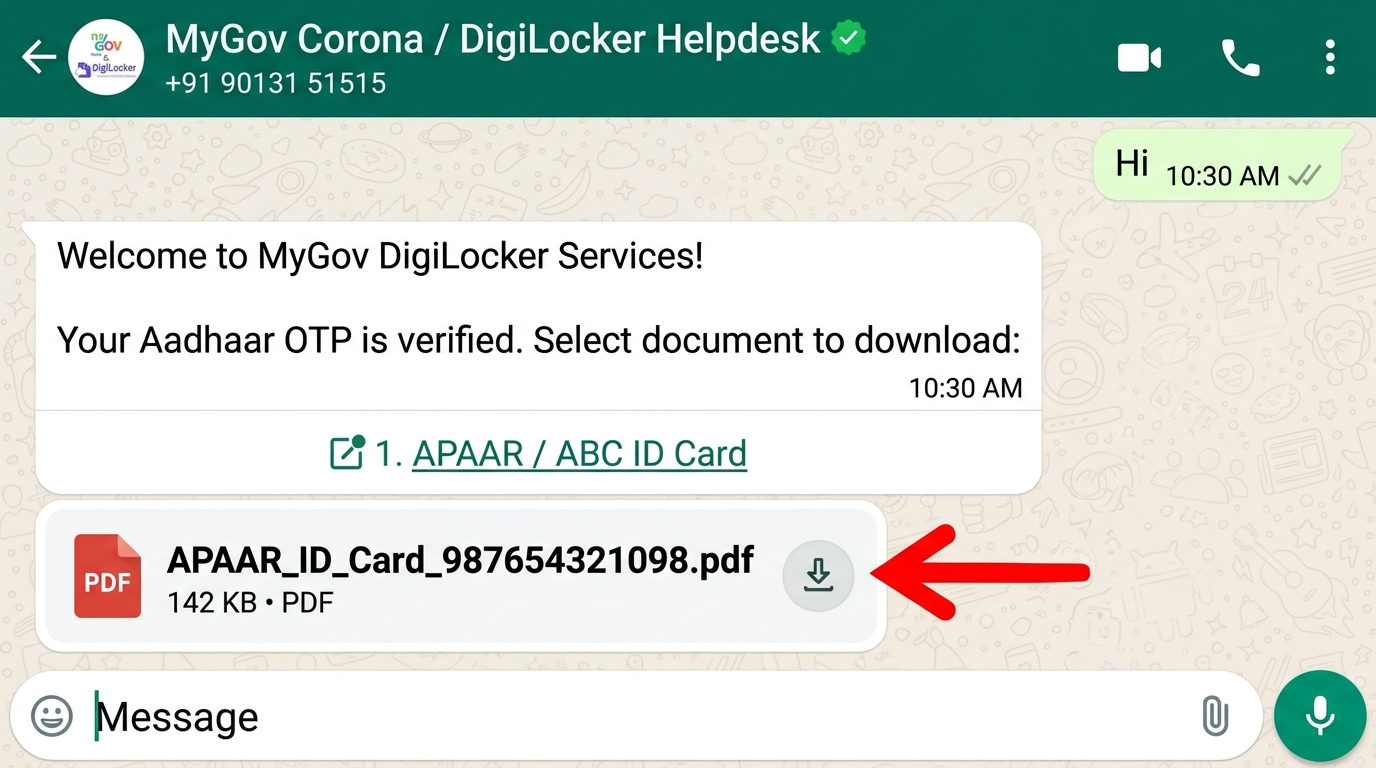
2. Get APAAR ID Card PDF Directly from Your School (UDISE+)
For K-12 school students (Nursery to Class 12) whose parents do not use DigiLocker or smartphones:
- Submit the signed APAAR ID parental consent form to your child’s class teacher.
- The school’s UDISE+ Nodal Officer logs into
sdms.udiseplus.gov.inand verifies the student’s details against their 11-digit Permanent Education Number (PEN). - Once the 12-digit APAAR ID is generated in the school’s UDISE+ APAAR Module, the school administrator can download and print the student’s APAAR card directly from the school portal.
- Request a stamped printout or PDF copy from your school office.
3. Download via Academic Bank of Credits Portal (abc.gov.in)
College and university students can view and save their APAAR/ABC card from the web browser:
- Visit the official portal at
www.abc.gov.inon any mobile or desktop browser. - Click “My Account” → “Student” and complete your APAAR ID login using your mobile number and OTP.
- On the right side of your student dashboard, your 12-digit APAAR / ABC ID Card preview is displayed.
- Click on the card preview or take a high-resolution print/export for university admission forms.
4. Download Through UMANG App or Web (web.umang.gov.in)
If the main DigiLocker website is slow during exam season, use the Government’s UMANG platform:
- Visit
web.umang.gov.inor open the UMANG app and log in with your mobile number and MPIN/OTP. - Search for “Academic Bank of Credits” or “DigiLocker” in the services tab.
- Authenticate your Aadhaar OTP and click Download PDF next to your issued APAAR ID card.
How to Find APAAR ID & How to Know My APAAR ID Number Online
Lost your physical card or wondering how to find APAAR ID / how to know my APAAR ID for school exams, college forms, or NEET UG registration? Use these four instant lookup methods.
| Lookup Method | Best For | Exact Steps to Find / Check Your 12-Digit APAAR ID |
|---|---|---|
| 1. Find APAAR ID in DigiLocker | School & College Students | Sign in to digilocker.gov.in → click Issued Documents → look for Academic Bank of Credits (APAAR/ABC ID). Your 12-digit number is printed right on the card. |
| 2. Search SMS & Email Inbox | Forgotten ID Number | Search your phone SMS messages for APAAR or ABC ID, or search your email inbox for messages from nad@digilocker.gov.in, which contains your 12-digit number. |
| 3. Check via School UDISE+ PEN | Nursery to Class 12 Students | Give your child’s 11-digit UDISE+ Permanent Education Number (PEN) or Roll Number to the class teacher. They can look up the generated 12-digit APAAR ID in the school UDISE+ roster. |
| 4. Check on ABC Portal Dashboard | University & Degree Students | Visit abc.gov.in → click My Account → Student → sign in with your Aadhaar-linked mobile number. Your 12-digit APAAR ID is displayed at the top of your profile. |
How to Apply for Your APAAR ID Certificate & Verify Authenticity
Your APAAR ID certificate contains your 12-digit unique academic number, Aadhaar-verified demographics, and an encrypted 2D QR code used by schools, universities, and scholarship boards to verify your identity.
How to Get Your APAAR ID Certificate (College vs. School)
For College & University Students:
- Log in to your student account on
abc.gov.inordigilocker.gov.in. - Ensure your University/Institute name and Admission Year are updated under the Academic Bank of Credits document issuer.
- Your official APAAR ID Certificate PDF is generated instantly and ready for download under Issued Documents.
For K-12 School Students:
- The certificate request is initiated by your school on the UDISE+ portal after parental consent verification.
- It typically takes 2 to 7 working days for school-submitted batches to sync with UIDAI and appear in DigiLocker, followed by an SMS confirmation to the parent’s mobile number.
How to Verify Your APAAR ID Card (QR Code & Adobe Signature)
1. Instant QR Code Verification (Self & Third-Party):
- Open the official DigiLocker mobile app and tap the QR Scanner icon (or visit
verify.digilocker.gov.in). - Point your phone camera at the QR code printed on the APAAR ID card PDF.
- The scanner immediately confirms whether the 12-digit APAAR ID is authentic and displays the verified student name and DOB.
2. Validate Yellow Question Mark (?) in Adobe Acrobat Reader:
- Open the downloaded PDF in Adobe Acrobat Reader on a desktop PC.
- Right-click the yellow
?signature box → click Show Signature Properties → Show Signer’s Certificate → Trust Tab → Add to Trusted Certificates → check Use this certificate as a trusted root → click Validate Signature to turn it into a green checkmark (✓).
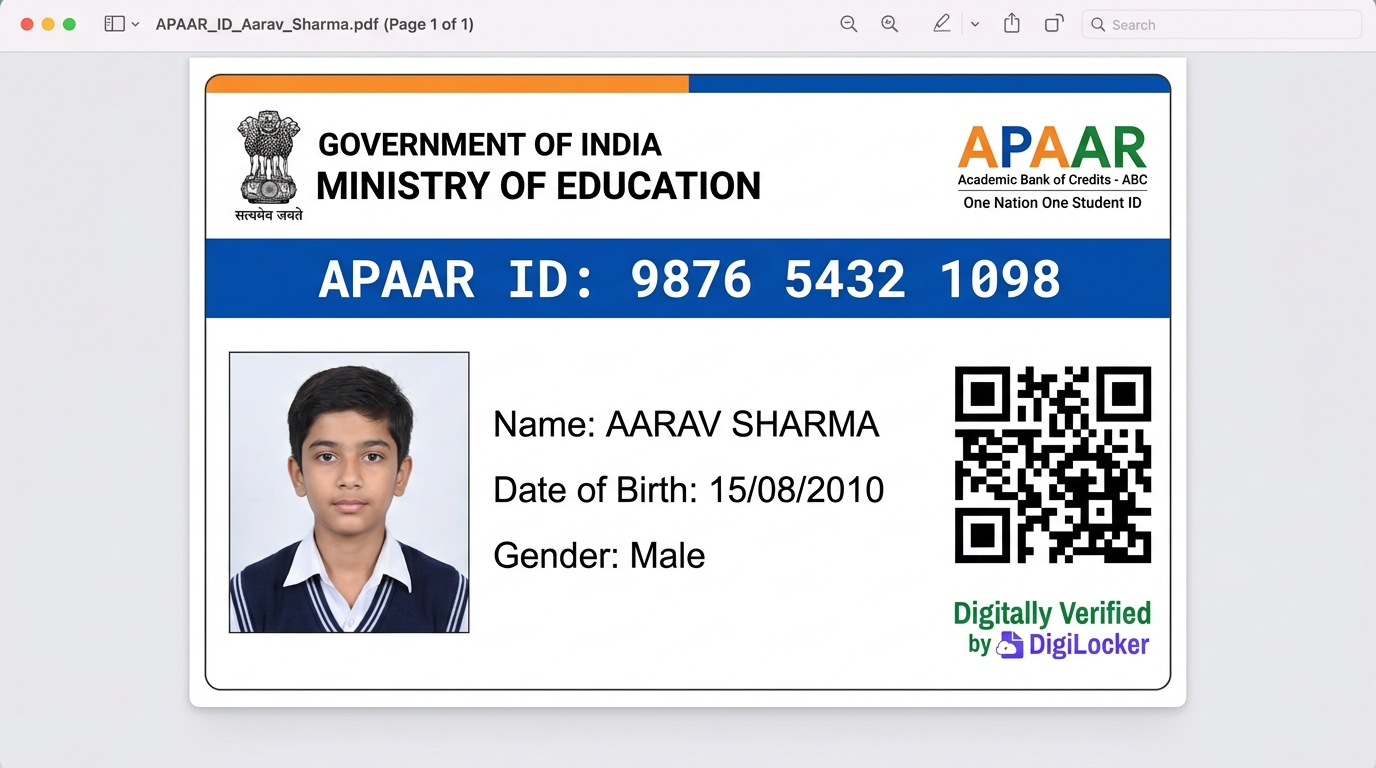
Printable PVC Card Dimensions & Lamination Rules
Under Rule 9A of the Information Technology (Digital Locker Facilities) Rules 2016, your digital PDF in DigiLocker is legally valid everywhere. If you want a physical wallet card, use these standard CR80 printing specs:
- Card Material: High-Grade PVC / PET Composite (ISO/IEC 7810 ID-1 standard).
- Standard Wallet Dimensions:
85.60 mm × 53.98 mm(CR80 credit-card size, 30 Mil / 0.76 mm thickness). - Print Resolution: Minimum 300 DPI color thermal printing so the 2D QR code scans cleanly without pixelation.
- Home Printing Option: You can also print the PDF on standard A4 paper or glossy photo paper and laminate it at any stationary shop.
अपार आईडी (APAAR ID) क्या है और डाउनलोड कैसे करें?
अपार आईडी (APAAR ID – Automated Permanent Academic Account Registry) शिक्षा मंत्रालय, भारत सरकार द्वारा ‘वन नेशन, वन स्टूडेंट आईडी’ (NEP 2020) के तहत शुरू किया गया छात्रों का 12 अंकों का स्थायी डिजिटल पहचान पत्र है। इसमें छात्रों की मार्कशीट, सर्टिफिकेट, डिग्री और अकादमिक क्रेडिट्स (ABC ID) सुरक्षित रहते हैं।
अपार आईडी कार्ड पीडीएफ डाउनलोड करने की प्रक्रिया (Step-by-Step):
- सबसे पहले आधिकारिक डिजीलॉकर वेबसाइट (
digilocker.gov.in) या मोबाइल ऐप पर जाएं। - अपने आधार से जुड़े मोबाइल नंबर, ओटीपी (OTP) और 6 अंकों के सुरक्षा पिन (PIN) से Sign In करें।
- डैशबोर्ड में बाईं ओर दिए गए “Issued Documents” विकल्प पर क्लिक करें।
- सूची में “APAAR/ABC ID Card” खोजें और उसके सामने दिए गए Download PDF आइकन पर क्लिक करके अपना कार्ड सेव या प्रिंट कर लें।
- बिना डिजीलॉकर ऐप के: अपने व्हाट्सएप से
+91-9013151515(MyGov Helpdesk) पर “Hi” भेजें और DigiLocker Services चुनकर तुरंत अपनी अपार आईडी पीडीएफ प्राप्त करें।
Common Issues While Downloading Your APAAR ID & How to Fix Them
Facing errors while trying to find or download your Apar / Appar ID card PDF? Follow these quick fixes.
| Download Issue / Error | Why It Happens | Exact Step-by-Step Fix |
|---|---|---|
| APAAR ID Not Showing in DigiLocker | School has not uploaded UDISE+ consent yet, or card is not pulled into Issued Documents. | Confirm with your school teacher that your ID was generated on UDISE+. Then go to DigiLocker → Search Documents → type “Academic Bank of Credits” → click Get Document. |
| Record Not Found / Mismatch | Student’s Name, DOB, or Gender in school register does not match Aadhaar card spelling. | Compare your school fee receipt/register with your Aadhaar card. Correct the spelling mismatch at an Aadhaar Seva Kendra or via your school’s UDISE+ admin. |
| PDF File Not Downloading | Mobile browser pop-up blocker, outdated DigiLocker app, or peak server traffic. | Update the DigiLocker app from Play Store/App Store, clear browser cache, or use the official WhatsApp Helpdesk (+91-9013151515) to download the PDF in chat. |
| Wrong Details Printed on Card | Outdated Aadhaar demographic cache in DigiLocker. | After updating your Aadhaar card, log in to DigiLocker → go to Profile → Re-KYC, then click the Refresh icon next to your APAAR ID in Issued Documents. |
Frequently Asked Questions (APAAR ID Card Download)
Verified answers to the most common questions about downloading, finding, and printing your 12-digit student ID card.
Visit the official DigiLocker portal (digilocker.gov.in) or open the DigiLocker mobile app, sign in with your Aadhaar-linked mobile number and 6-digit security PIN, open the “Issued Documents” tab, find “APAAR/ABC ID Card”, and click the Download PDF icon.
You can download your APAAR ID without the DigiLocker app in three ways: (1) Send “Hi” to the official MyGov WhatsApp Helpdesk at +91-9013151515, select DigiLocker Services, verify your Aadhaar OTP, and download the PDF in WhatsApp; (2) Ask your school’s UDISE+ nodal officer to print the card from the school portal; or (3) Log in to abc.gov.in to view your card on the student dashboard.
To find or know your 12-digit APAAR ID number: (1) Check the Issued Documents section of your DigiLocker account; (2) Search your email inbox for the confirmation email from nad@digilocker.gov.in; (3) Check your Aadhaar-linked mobile SMS history; or (4) Ask your school class teacher to check your status on the UDISE+ portal using your 11-digit PEN number.
For college and university students who register online via DigiLocker or abc.gov.in, the 12-digit APAAR ID card is generated instantly. For K-12 school students whose forms are processed in bulk by schools on the UDISE+ portal, it typically takes 3 to 7 working days.
Yes. Appar ID download, Apar ID card download, Aapar card download, and Upper ID card are common phonetic spellings for the official APAAR ID Card (अपार आईडी) issued by the Ministry of Education. It is also identical to your 12-digit ABC ID card.
Yes, you can log in to your DigiLocker account from any smartphone, tablet, or computer and re-download your APAAR ID PDF as many times as needed, 100% free of charge.
Personal details (Name, DOB, Gender, Photo) on your APAAR ID are fetched directly from your UIDAI Aadhaar card. If they are incorrect, update your Aadhaar card first and perform a Re-KYC in DigiLocker. If your academic credits or roll number are missing, contact your school or university nodal officer to update them in UDISE+ or NAD.
Yes. Under Rule 9A of the Information Technology (Digital Locker Facilities) Rules 2016, digitally signed PDFs downloaded from DigiLocker are legally recognized at par with original physical certificates across all schools, universities, and NTA entrance exams (NEET UG, JEE Main, CUET).